
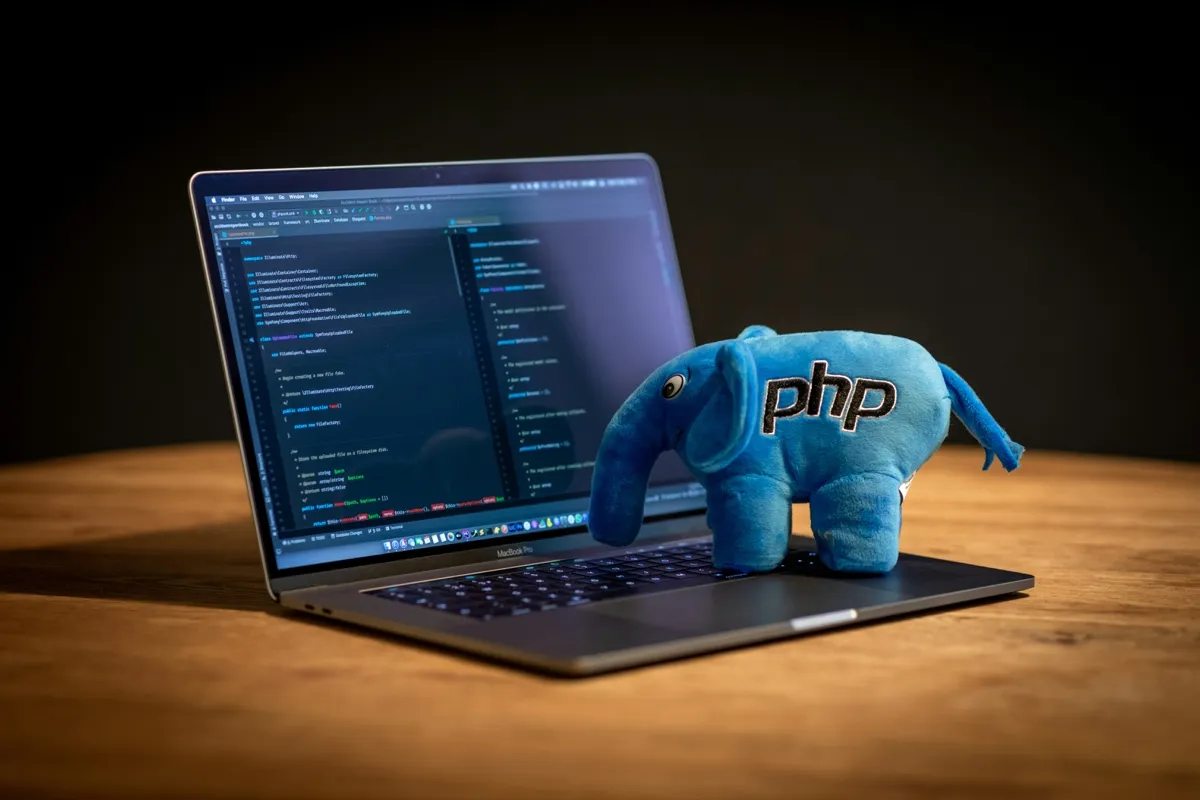
A website is not a finished product that you build once and forget. It runs on several pieces of software, and each of them needs regular updates to stay secure.
Most business websites depend on a programming language such as PHP, an application such as WordPress, themes and plugins, a database, a web server and the server's operating system. When any of these falls out of date, it may contain weaknesses that are already publicly known, and attackers actively look for websites running such versions.
Businesses often spend money on design and features but forget the technology underneath. Updates are not only about new features. They protect your business data, your customers' information and your ability to operate online.
This article focuses on PHP, the language that powers WordPress and many other websites, and explains how to upgrade it safely. It also covers the other software your website depends on.
In this article
- What PHP does on your website
- What happens when you use an outdated PHP version
- PHP end of life: which versions are supported today
- Why the PHP version matters for WordPress
- Common problems during a PHP upgrade
- How to upgrade PHP without breaking your website
- PHP is not the only software to update
- The business risks of ignoring updates
- Website security maintenance checklist
- When to get professional help
- Frequently asked questions
- Conclusion: security needs regular maintenance
1. What PHP does on your website
PHP is a programming language that runs on the web server, not in the visitor's browser. When someone opens a page, PHP runs the website's code, reads from and writes to the database (usually MySQL or MariaDB), and builds the page that is sent back to the visitor.
On a typical business website, PHP handles:
- Sign-in, accounts and user sessions.
- Contact forms, enquiry forms and checkouts.
- Content management, such as adding pages and blog posts.
- File uploads and downloads.
- Reading and saving information in the database.
WordPress, and many other content management systems and frameworks, are written in PHP. So the PHP version on your server affects your website's security, its compatibility with plugins and themes, and its performance.
2. What happens when you use an outdated PHP version
- Known security weaknesses: Older PHP versions can contain security flaws that have been publicly documented. Once a version is no longer supported, the PHP project no longer fixes them.
- No more security fixes: Every PHP version has a fixed support period. After it ends, no new security updates are released for that version, however serious a newly found problem is.
- Compatibility problems: New releases of plugins, frameworks and libraries gradually drop support for old PHP versions. Over time, you can no longer install updates for the rest of your website either.
- Missed performance improvements: Newer PHP versions often run code faster and use memory better. The gain depends on the website, so an upgrade alone does not guarantee a faster site.
- Forced, rushed changes: Hosting companies eventually remove old PHP versions. A sudden, forced migration is usually more disruptive and more expensive than a planned one.
To keep this balanced: an outdated PHP version does not mean your website will automatically be hacked. The real risk depends on the specific weaknesses, your server's configuration, your website's code and how exposed it is. But unsupported software clearly increases the risk and makes every future change harder.
3. PHP end of life: which versions are supported today
According to the official PHP website, each PHP version goes through three stages:
- Active support (two years): bugs and security problems are fixed, and regular updates are released.
- Security fixes only (two more years): only critical security problems are fixed, when needed.
- End of life: no more updates of any kind.
At the time of writing (November 2026), the status is:
| PHP version | Status | Security fixes until |
|---|---|---|
| 7.4 and older | End of life | Ended (7.4 on 28 Nov 2022) |
| 8.0 | End of life | Ended on 26 Nov 2023 |
| 8.1 | End of life | Ended on 31 Dec 2025 |
| 8.2 | Security fixes only | 31 Dec 2026 |
| 8.3 | Security fixes only | 31 Dec 2027 |
| 8.4 | Active support | 31 Dec 2028 |
| 8.5 | Active support | 31 Dec 2029 |
| 8.6 | Active support | 31 Dec 2030 |
If your website runs PHP 8.2, it stops receiving security fixes on 31 December 2026. If it runs 8.1 or older, it is already unsupported. Dates can change, so always confirm them on the PHP supported versions page and the list of unsupported versions.
The key message: a website may keep working on an unsupported PHP version, but working is not the same as being secure or supported.
4. Why the PHP version matters for WordPress
WordPress is written in PHP, and so are its themes and plugins. Every page a visitor opens runs PHP code from all three.
- What WordPress recommends: the WordPress requirements page recommends PHP 8.3 or newer, with MariaDB 10.11+ or MySQL 8.4+, and HTTPS. The WordPress hosting handbook recommends PHP 8.4 or newer for live websites.
- Old versions still run, but are not safe: current WordPress still runs on PHP 7.4 and later, only for backward compatibility. WordPress itself warns that these old versions have reached end of life and may expose your site to security vulnerabilities.
- Updating WordPress does not update PHP: the PHP version is a setting of your hosting server, separate from WordPress. A fully updated WordPress can still run on an outdated PHP version.
- Themes and plugins must keep up: an old theme or plugin may use code that newer PHP versions no longer accept. The result can be error messages, broken pages, failing features or a website that does not load at all.
So before changing the PHP version, check compatibility across WordPress itself, every plugin, the theme, any custom code and the hosting environment.
5. Common problems during a PHP upgrade
Changing the PHP version is often a single click in the hosting panel. That is exactly why it can go wrong: the click is easy, but the website's code may not be ready.
| Problem | What it means |
|---|---|
| Removed or changed functions | Code that used older PHP features may stop working in newer versions. |
| Fatal errors | Incompatible code can stop a page, or the whole website, from loading. |
| Plugin problems | A plugin may not support the new PHP version yet, or may have been abandoned by its developer. |
| Theme problems | An older theme may rely on outdated code. |
| Database connection issues | The website's code or database drivers may need changes. |
| Custom code failures | Features built specially for your website may depend on old PHP behaviour. |
| Missing extensions | PHP add-ons your website needs may be missing or switched off in the new version. |
A typical example: a business website was built several years ago for the PHP version of that time. Since then, its plugins, theme and custom features have quietly depended on that environment. Everything looks fine day to day, until the PHP version changes without testing and those hidden dependencies break.
6. How to upgrade PHP without breaking your website
A safe upgrade follows the same steps every time:
-
Step 1: Find your current PHP version
Check it in your hosting control panel, usually under a "PHP version" or "PHP configuration" setting, or ask your hosting company or developer. If someone creates a temporary PHP information page to check, it must be deleted straight afterwards, because it reveals details about your server.
-
Step 2: Review your website
List the WordPress (or other platform) version, the theme, every plugin, any custom code and third-party connections such as payment gateways. Note which plugins are no longer maintained and which PHP extensions the website needs.
-
Step 3: Take complete backups
Back up the website files, the database and the configuration. Keep the backup somewhere separate from the live server, and confirm that it can actually be restored. A backup that has never been tested is not a reliable recovery plan.
-
Step 4: Test on a copy first
Make a copy of the website (a "staging" site), switch the copy to the new PHP version and fix any problems there, before touching the live website.
-
Step 5: Upgrade PHP on the live website
Choose a supported version that your website and hosting both support. The newest release is not automatically the right choice; what matters is that the version is supported and your website works on it.
-
Step 6: Test everything important
Check the home page and main pages, sign-in and the admin area, forms, file uploads, payments, emails and any scheduled tasks. Go through your most important customer journeys from start to finish.
-
Step 7: Watch the website afterwards
Review the error logs and watch for error pages (such as "500" errors) over the following days, not only in the first few minutes. Some problems appear only when a rarely used feature runs.
-
Step 8: Keep a way back
Write down how to return to the previous working setup if something serious goes wrong, and keep the backup ready. Rolling back buys time to fix problems calmly instead of under pressure.
7. PHP is not the only software to update
PHP is one important layer, but your website's security depends on everything it runs on:
- WordPress itself: install security and maintenance updates promptly, stay on a supported version and remove themes and plugins you no longer use.
- Themes and plugins: keep them updated, check that their developers still maintain them, and avoid untrusted or unnecessary ones. Every extra plugin is extra code that needs updates.
- Server software: the operating system, the web server (Apache or Nginx), the database (MySQL or MariaDB) and security libraries such as OpenSSL all need security updates. On shared hosting, the hosting company handles most of this; on your own server, you or your developer must.
- Database and access: use separate, strong database passwords, do not expose the database to the internet unnecessarily, keep regular backups that can be restored, and watch for unusual activity.
An SSL certificate or a security plugin alone does not make a website secure. Security comes from keeping the whole stack supported and updated.
8. The business risks of ignoring updates
| Risk | What it can mean for your business |
|---|---|
| Website compromise | Attackers use known weaknesses in outdated software to take control of a website. |
| Data exposure | Customer details, business records or passwords can be stolen. |
| Downtime | An attack or a failed upgrade can take the website offline, stopping enquiries and sales. |
| Recovery costs | Investigation, clean-up and emergency development work are expensive. |
| Lost trust | Customers may hesitate to use a business after a security incident. |
| Harder maintenance | The longer updates wait, the bigger and more costly the eventual upgrade becomes. |
| Broken connections | Payment gateways and other services may stop working with outdated environments. |
None of this is guaranteed to happen. But each risk grows the longer your software stays unsupported.
9. Website security maintenance checklist
- Check which PHP version your website runs.
- Confirm that the version is still officially supported.
- Plan the next PHP upgrade before the current version reaches end of life.
- Check compatibility with WordPress, the theme, plugins and any custom code.
- Keep WordPress updated.
- Update themes and plugins, and remove the ones you do not use.
- Make sure the server's operating system and software receive security updates.
- Keep the database software maintained.
- Take regular backups, and test restoring one from time to time.
- Test major upgrades on a copy of the website first.
- Review error logs regularly.
- Have the website's security checked periodically.
For some quick basics, such as your SSL certificate, security headers and email protection, you can use our free website check.
10. When to get professional help
A PHP upgrade is not always just a version number in the hosting panel. Depending on the website, it may need code changes, plugin replacements, configuration work, testing and a carefully timed switch. Consider professional help when:
- Your website runs an unsupported PHP version.
- It was built on an older framework or has a lot of old code.
- It has custom features or complex connections to other systems.
- It depends on many third-party plugins or libraries.
- It handles customer data or payments.
- It runs on your own server with a custom configuration.
- Your business cannot afford unexpected downtime.
A technical analysis shows what your website depends on and what an upgrade involves, and verification confirms that everything works after the change.
11. Frequently asked questions
How do I find out which PHP version my website uses?
Look for a "PHP version" or "PHP configuration" setting in your hosting control panel, or ask your hosting company or developer. In WordPress, the Site Health page (Tools → Site Health → Info → Server) also shows it.
Will my website stop working when its PHP version reaches end of life?
Usually not immediately. The website keeps running, but it no longer receives security fixes, and your hosting company may later remove that version, forcing a rushed upgrade.
Does updating WordPress also update PHP?
No. PHP is part of the hosting server and is changed separately, in the hosting panel or by whoever manages the server.
Which PHP version should I choose?
A version that is currently supported and that your website, plugins and hosting all work with. For WordPress, the project recommends PHP 8.3 or newer, and 8.4 or newer for live websites. Test on a copy of the website first.
Will upgrading PHP make my website faster?
Often a little, because newer PHP versions include performance improvements. But it depends on the website, so speed should be a bonus, not the main reason to upgrade.
Is a security plugin enough to protect my website?
No. A security plugin helps, but it cannot fix weaknesses in outdated PHP, WordPress, plugins or server software. Keeping everything supported and updated is the foundation.
How often should a website be updated?
Install security updates as soon as they are released. Review the whole setup, including the PHP version, at least every few months, and plan major upgrades before support ends.
Conclusion: security needs regular maintenance
Website security is an ongoing responsibility, not a one-time setup. PHP upgrades belong in a regular maintenance plan, done before a security incident or a forced hosting change makes them urgent.
Keeping software supported and updated reduces your exposure to known weaknesses. Compatibility checks, backups that work and careful monitoring make every upgrade safer. A well-maintained website is easier to secure, manage and grow.
Your website is an important business asset. Protecting it takes more than an SSL certificate or a security plugin: it takes looking after the code, the PHP version and the server that power it.